Posts

Showing posts with the label windows xp

Best Hacking Tools Of 2017 For Windows, Linux, And OS X
Image
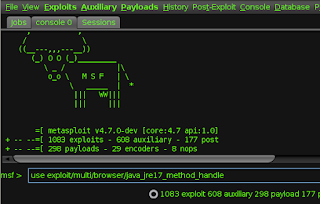
ZerocoolZ1  has prepared a useful list of the best hacking tools of 2017 based upon industry reviews, your feedback, and its own experience. This list will tell you about the best software used for hacking purposes featuring port scanners, web vulnerability scanner, password crackers, forensics tools and social engineering tools. We have compiled this list of top hacking tools of 2017 with their best features and download links. Read about them, learn how to use them and share your reviews to make this list better. 1. Metasploit | Best Hacking Tools Of 2017 Rather than calling  Metasploit  a  collection of exploit tools , I’ll call it an infrastructure that you can utilize to build your own custom tools. This free tool is one of the most popular cybersecurity tool around that allows you to locate vulnerabilities at different platforms. Metasploit is backed by more than 200,000 users and contributors that help you to get insights and uncover the weaknes...

Google Dorks For Hacking CCTV And Security Cameras

Here  is a list of all google dorks you can use for hacking hacking cctv and security cameras     inurl:”CgiStart?page=”     inurl:/view.shtml     intitle:”Live View / – AXIS     inurl:view/view.shtml     inurl:ViewerFrame?Mode=     inurl:ViewerFrame?Mode=Refresh     inurl:axis-cgi/jpg     inurl:axis-cgi/mjpg (motion-JPEG) (disconnected)     inurl:view/indexFrame.shtml     inurl:view/index.shtml     inurl:view/view.shtml     liveapplet     intitle:”live view” intitle:axis     intitle:liveapplet     allintitle:”Network Camera NetworkCamera” (disconnected)     intitle:axis intitle:”video server”     intitle:liveapplet inurl:LvAppl     intitle:”EvoCam” inurl:”webcam.html”     intitl...

Solution Of No Internet Access/Limited access In Windows

Image
# Open Device Manager (search Windows Help if you don’t know what this is) # Select ‘Network adaptors’ and then open (double-click) Broadcom 802.11n Network Adaptor # Go to the Driver tab and click the Update Driver… button # Select ‘Browse my computer for driver software’ # Select ‘Let me pick from a list of device drivers on my computer’ # Select the “Broadcom 802.11n Network Adaptor (Broadcom)/Intel” entry from the list, and click Next Well, it worked for me. Good luck